How I Manage Astro Content with Pages CMS

ohwire
August 27, 2026 • 4 min read
Static sites built with Astro are fast, simple, and cheap to run. You keep your content in Markdown files, commit them to Git, and let your build step handle the rest. This workflow works well when you sit at your desk with your code editor open. It breaks down the moment you want to fix a typo from your phone, write a quick draft on a tablet, or let a non-developer edit a page.
The usual solution is to reach for a headless CMS. You look at Contentful, Sanity, or Strapi. Suddenly you have a separate backend to maintain, API keys to manage, network requests on every build, and a monthly bill once you pass free-tier limits. Decap CMS used to fill the file-based gap, but its configuration is messy and development has slowed down.
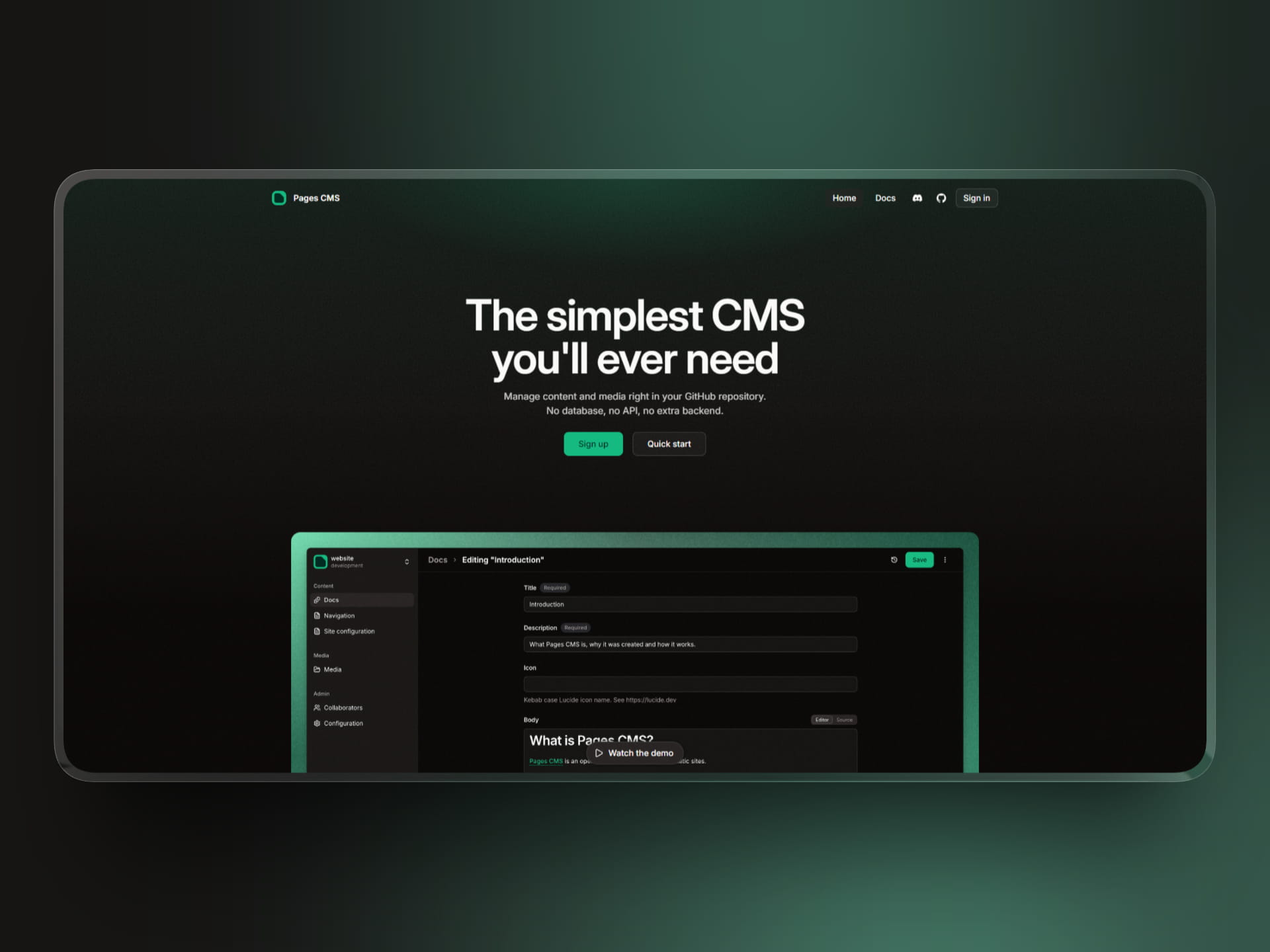
I recently started using Pages CMS, and it has become my daily driver for managing content on this blog. It gives you a clean visual editor that commits directly to your GitHub repository without any database or backend servers.
How it works
Pages CMS is an open-source web application. You log in with your GitHub account, pick a repository, and start writing.
Under the hood, Pages CMS interacts directly with the GitHub API. When you create or update a post, it commits the file directly to your target branch. Your static hosting provider, like Cloudflare Pages or Vercel, sees the new commit and rebuilds the site.
Everything stays in Git. Your repository remains the single source of truth. If Pages CMS ever goes offline, your Markdown files are still in your repository.
Configuring your content with .pages.yml
What made me stick with Pages CMS is how cleanly it defines content schemas. You place a single .pages.yml file in the root of your repository.
Here is the exact configuration I use for this blog:
media:input: public/imagesoutput: /imagesrename: safe
content:- name: notes  label: Notes  type: collection  path: src/content/notes  filename: "{primary}.mdx"  view:    fields: [title, description, publishDate, draft]    primary: title    sort: [publishDate, title, draft]    default:      sort: publishDate      order: desc  fields:    - name: title      label: Title      type: string      required: true
    - name: description      label: Description      type: text      required: true
    - name: publishDate      label: Publish date      type: date      required: true
    - name: author      label: Author      type: string      default: ohwire
    - name: authorImage      label: Author image      type: string      default: /images/avatar.jpeg
    - name: category      label: Category      type: select      options:        values:          - Setup          - Notes          - Tools          - SaaS
    - name: image      label: Cover image      type: image
    - name: imageAlt      label: Image alt text      type: string
    - name: featured      label: Featured      type: boolean      default: false
    - name: draft      label: Draft      type: boolean      default: true
    - name: body      label: Content      type: rich-text
Mapping cleanly to Astro content collections
If you use Astro’s src/content.config.ts, this schema will look familiar. The fields in .pages.yml line up with the Zod schema in Astro.
Here is the corresponding Astro collection definition:
import { defineCollection } from "astro:content";import { glob } from "astro/loaders";import { z } from "astro/zod";import { CATEGORIES, isValidCategory } from "./config/categories";
const notesCollection = defineCollection({loader: glob({ pattern: "**/*.{md,mdx}", base: "./src/content/notes" }),schema: z.object({  title: z.string(),  description: z.string(),  publishDate: z.coerce.date(),  author: z.string(),  authorImage: z.string().optional(),  readTime: z.string().optional(),  category: z.string().refine(isValidCategory, {    message: "Invalid category. Must be one of: " + CATEGORIES.join(", "),  }),  image: z.string().optional(),  imageAlt: z.string().optional(),  featured: z.boolean().default(false),  draft: z.boolean().default(true),}),});
A few details make this setup pleasant to work with:
The body field is a special key in Pages CMS. When you use frontmatter formats, any field named body maps to the Markdown content below the frontmatter. All other fields stay in the frontmatter block at the top.
The media setting maps your repository upload folder to your public URL. When I drag an image into the editor, Pages CMS commits the file to public/images/posts/ and inserts /images/posts/image-name.png into the frontmatter. That path works in Astro without extra transformations.
The view object customizes how collection entries appear in the sidebar list. Setting primary: title and sort: publishDate gives me a clean list sorted by date, exactly like a dedicated blog dashboard.
How I use it daily
Having Pages CMS configured changed how I maintain this blog.
First, fixing typos and updating old notes no longer requires a development environment. I open Pages CMS in the browser, find the note in the list, edit the text, and hit save. The commit goes directly to GitHub, triggers my deployment, and goes live in two minutes.
Second, drafting happens anywhere. When I get an idea while away from my computer, I open the dashboard on my phone or tablet, fill in the title, pick a category from the dropdown, and start writing. The fields match what Astro expects, so I never forget required frontmatter properties like publishDate or category.
Third, handling media is painless. Instead of manually copying an image file into public/images/posts/, renaming it, and typing the relative path into the frontmatter, I drop the image into the cover image field. Pages CMS commits the image file and writes the correct path.
When to use it
Pages CMS is not built for every project. If you have a large marketing team requiring real-time co-authoring, complex staging previews, or editorial review permissions, you need a full enterprise CMS.
For developer blogs, documentation sites, and personal projects, it removes the headache of managing databases or third-party storage. You keep the simplicity of Markdown in Git, and you gain a visual dashboard you can access from anywhere.
Check out the official documentation to explore more field types and setup options.